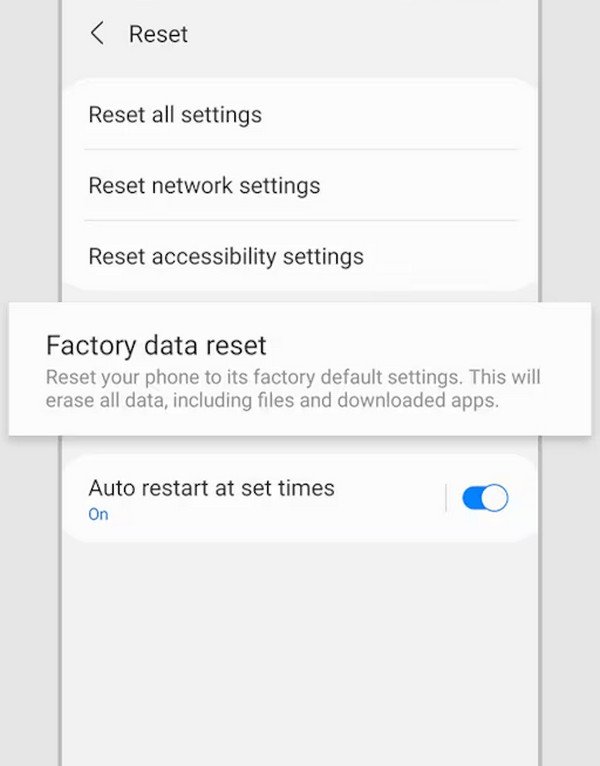
Is your Windows PC stuck in a boot loop, crawling to a halt, or riddled with persistent issues? Sometimes, no amount of troubleshooting or antivirus scans can bring it back to its former glory. That's where a Factory Reset & Advanced Solutions come into play—a powerful, often necessary, step to reclaim your computer's performance and stability.
This guide isn't just about clicking a button; it's about understanding why you're resetting, what to expect, and how to navigate the process, even when your PC refuses to cooperate. Think of it as hitting the ultimate refresh button, giving your digital life a much-needed clean slate.
At a Glance: Key Takeaways
- Purpose: A factory reset returns your PC to its original, out-of-the-box state.
- Benefits: Fixes performance issues, removes stubborn malware, resolves software conflicts, and securely prepares your PC for resale or donation.
- Time Commitment: Expect 30 minutes to 3+ hours, depending on your PC's speed and chosen options.
- Two Main Options: "Keep my files" (retains personal data, deletes apps) or "Remove everything" (complete wipe).
- Two Reinstallation Methods: "Cloud download" (fresh Windows copy) or "Local reinstall" (uses existing files).
- Emergency Resets: Learn methods to reset your PC even when Windows won't boot normally.
- Crucial Step: ALWAYS back up your important data before starting.
Why a Factory Reset? Giving Your PC a Second Chance
A factory reset might sound drastic, but it's often the most effective solution for a range of frustrating PC problems. It essentially wipes the slate clean, removing accumulated digital debris that bogs down your system. This isn't just about speed; it's about stability, security, and giving your computer a fresh start.
This process eliminates lingering malware, resolves deeply ingrained software conflicts, and clears out any unwanted "bloatware" that came pre-installed from the manufacturer. Moreover, if you're looking to sell or donate your old computer, a factory reset—especially the "remove everything" option with secure data erasure—is non-negotiable for protecting your privacy. The good news? You don't need to be a tech wizard; Windows guides you through each step.
When It's Time for a Clean Slate
Deciding when to perform a factory reset is crucial. It's a significant step, so you want to ensure it's the right one. Consider a reset if:
- Your PC is agonizingly slow: Despite regular cleaning and optimization, your system remains sluggish, taking ages to open programs or respond.
- Frequent crashes and freezes: Applications often hang, or your entire system becomes unresponsive, leading to frustrating interruptions.
- Stubborn malware or viruses: You've tried multiple antivirus solutions, but a persistent infection keeps coming back or interfering with your system.
- Selling or donating your computer: This is mandatory. You must wipe your personal data completely to protect your privacy and the next user's security.
- Severe software conflicts: A recent update or program installation has caused irreparable system instability.
- Desire for a truly clean Windows installation: You want to remove all manufacturer bloatware and start fresh with a lean operating system.
If these scenarios sound familiar, a factory reset is likely your best bet for a healthy, responsive PC.
Understanding Your Reset Options: Keep vs. Remove
Windows offers two primary paths when you decide to reset, each designed for different situations. Choosing correctly is vital, as it determines what happens to your personal files and applications.
1. "Keep my files"
This option is your go-to if you want to fix system issues without losing your precious documents, photos, videos, and music. Here's what it does:
- Keeps: Your personal files in user folders (Desktop, Documents, Downloads, Pictures, Music, Videos) remain untouched. Files on separate drive partitions (e.g., a D: drive) are also safe.
- Removes: All installed applications (non-pre-installed ones), games, and programs are deleted. System settings revert to their defaults.
- Ideal for: Resolving performance problems, fixing system corruption, or removing buggy software without a complete data loss.
Think of it as a deep clean for Windows itself, leaving your personal belongings neatly organized.
2. "Remove everything"
This is the nuclear option, performing a total wipe of your computer. It’s perfect for scenarios where privacy and a truly fresh start are paramount.
- Removes: ALL personal files, applications, games, and system settings. Your PC returns to its "out-of-the-box" state, just as it was when you first bought it.
- Includes Secure Wipe (Optional): When choosing this, you'll often see an option like "Clean the drive fully" or "Data erasure." Selecting this securely overwrites your drive, making file recovery nearly impossible. This is absolutely critical when selling or disposing of your PC.
- Ideal for: Selling or donating your computer, tackling severe malware infestations, or when you simply want a completely fresh start from scratch.
This option leaves no trace, ensuring your data is gone for good.
Choosing Your Windows Reinstallation Method
After picking whether to keep or remove your files, you'll face another choice: how Windows will be reinstalled.
1. "Cloud download"
This method fetches a completely fresh copy of Windows directly from Microsoft's servers.
- Pros: Ensures you get the latest version of Windows and eliminates any manufacturer bloatware that might have been part of your original "local" recovery image.
- Cons: Requires a stable internet connection and can take longer due to the download size.
- Availability: Available on Windows 10 (version 2004 and later) and Windows 11.
Choose this if you want the cleanest possible Windows installation, free from any pre-installed junk.
2. "Local reinstall"
This method uses the Windows installation files already stored on your PC (often in a hidden recovery partition).
- Pros: Generally faster as no large download is required.
- Cons: May reintroduce manufacturer customizations and bloatware if they were part of your original recovery image.
- Availability: Always an option on Windows 10 and 11.
Opt for this if speed is your priority and you don't mind potentially dealing with some pre-installed software again.
How to Factory Reset Windows 11 (When Your PC Still Boots)
If your Windows 11 PC can still boot into the desktop, the process is straightforward:
- Open Settings: Click the Start button, then select Settings (the gear icon). Alternatively, press Windows Key + I.
- Navigate to Recovery: In the left sidebar, select System, then click Recovery on the right pane.
- Initiate Reset: Under "Recovery options," find "Reset this PC" and click the Reset PC button.
- Choose Your Option: Select either "Keep my files" or "Remove everything" based on your needs.
- Select Reinstallation Method: Choose between "Cloud download" for a fresh copy from Microsoft or "Local reinstall" using existing files.
- (Optional) Configure Advanced Settings: If you chose "Remove everything," you might see a "Change settings" option. Click it to enable "Clean the drive fully" (highly recommended for selling/donating) or to specify if you want to clean data from all drives or just the Windows drive. Click "Confirm."
- Review Changes: Windows will display a summary of what will happen (e.g., apps to be removed). Review this carefully.
- Confirm & Start: Click Next, then Reset. Your PC will restart and begin the process, which will take some time.
- Complete Setup: Once the reset finishes, follow the on-screen prompts to set up Windows again.
How to Factory Reset Windows 10 (When Your PC Still Boots)
For Windows 10 users whose PCs are still functional, here’s how to initiate a reset:
- Open Settings: Click the Start button, then select Settings (the gear icon). Alternatively, press Windows Key + I.
- Navigate to Recovery: Click Update & Security, then select Recovery from the left-hand menu.
- Initiate Reset: Under the "Reset this PC" section, click the Get started button.
- Choose Your Option: Select either "Keep my files" or "Remove everything."
- Select Reinstallation Method: Choose between "Cloud download" (if on Windows 10 version 2004 or newer) or "Local reinstall."
- (Optional) Configure Advanced Settings: If you selected "Remove everything," click "Change settings" to enable "Data erasure" (for secure wiping) or to specify if you want to clean all drives. Confirm your choice.
- Review Summary: A summary screen will show you what will be removed. Read it carefully.
- Confirm & Start: Click Reset to begin the process. Your PC will restart several times.
- Complete Setup: After the reset, follow the on-screen wizard to configure your fresh Windows installation.
Emergency Reset: When Windows Won't Boot At All
Sometimes, your PC is so compromised that Windows can't even start normally, let alone reach the Settings menu. This is where advanced solutions come into play. Don't worry, even if your screen is black or stuck in a loop, there are ways to initiate a factory reset. Just like other persistent tech issues, whether you're looking for solutions for a Firestick not working or a completely dead PC, sometimes a deeper intervention is required.
Method 1: Using the Login Screen (If Reachable)
Even if Windows won't fully load, you might still be able to reach the login screen. This provides a pathway to the Advanced Startup environment.
- Access Advanced Startup: On the login screen, click the Power icon in the bottom-right corner.
- Restart to Recovery: While holding down the Shift key on your keyboard, click Restart. Keep holding Shift until you see the "Choose an option" screen.
- Navigate to Reset: From the "Choose an option" screen, select Troubleshoot > Reset this PC.
- Proceed with Reset: Choose your preferred reset option ("Keep my files" or "Remove everything") and follow the on-screen instructions as described in the sections above.
Method 2: Forcing Automatic Repair (When Login Screen is Unreachable)
If your PC won't even make it to the login screen, you can often trick Windows into entering its Automatic Repair mode, which then grants access to the reset options.
- Power On & Off (Forced):
- Turn on your PC.
- As soon as you see the manufacturer logo or the Windows logo (before it fully loads), press and hold the Power button for 5-10 seconds to force a shutdown.
- Repeat this process 2-3 times.
- Automatic Repair Mode: After a few failed boot attempts, Windows should automatically enter the "Automatic Repair" environment.
- Access Advanced Options: On the "Automatic Repair" screen, click Advanced options.
- Navigate to Reset: Select Troubleshoot > Reset this PC.
- Proceed with Reset: Choose your desired reset options and continue with the on-screen prompts.
Method 3: Using Windows Installation Media (The Last Resort)
If the above methods fail, creating a Windows installation USB drive on another working computer is your most reliable "advanced solution." This bootable media can bypass your corrupted Windows installation entirely.
- Create Installation Media:
- On a different, working PC, download the Windows Media Creation Tool from Microsoft's official website.
- Insert a USB drive (at least 8GB, formatted correctly) into the working PC.
- Run the Media Creation Tool and follow the instructions to create a bootable USB drive for Windows 10 or 11 (ensure you choose the correct version).
- Boot from USB:
- Insert the newly created bootable USB drive into your problematic PC.
- Turn on your PC. You'll likely need to enter your PC's BIOS/UEFI settings (usually by pressing Del, F2, F10, or F12 repeatedly during startup) to change the boot order, prioritizing the USB drive. Save and exit.
- Access Repair Options:
- Your PC should now boot from the USB drive, showing the Windows Setup screen.
- Do NOT click "Install now." Instead, click the "Repair your computer" link in the bottom-left corner.
- Navigate to Reset:
- This will take you to the Advanced Startup environment.
- Select Troubleshoot > Reset this PC.
- Complete Reset: Choose your preferred reset option and follow the remaining instructions to complete the factory reset.
The Reset Journey: What to Expect & How Long It Takes
A factory reset isn't an instant fix. It's a multi-stage process that requires patience. Understanding what's happening and realistic timeframes can prevent unnecessary worry.
The duration can vary significantly (30 minutes to 3+ hours) based on:
- PC speed: Newer, faster processors and more RAM reduce times.
- Storage type: SSDs (Solid State Drives) are significantly faster than traditional HDDs (Hard Disk Drives).
- Amount of data: If you chose "Remove everything" and have a lot of data, especially on an HDD, it will take longer.
- Chosen options: "Remove everything" with a full drive wipe takes the longest.
Here's a breakdown of the typical stages:
- Preparation (5-10 minutes): Windows gathers necessary system information and prepares the environment for the installation.
- Removing files and applications (10-30 minutes on SSD, 30-60+ minutes on HDD): This phase deletes existing programs, settings, and (if chosen) your personal files.
- Reinstalling Windows (15-60 minutes on SSD, 45-120+ minutes on HDD): A fresh copy of Windows is installed on your drive.
- Configuration (5-15 minutes): Windows sets up basic drivers and prepares for your initial user account setup.
Important Considerations:
- Don't interrupt: Once the reset begins, do NOT power off or restart your PC unless absolutely necessary (e.g., if it's genuinely frozen for over an hour).
- Keep power connected: For laptops, ensure your device is plugged into a power source throughout the entire process.
- Patience is key: It's normal for the screen to appear "stuck" on a certain percentage for 10-15 minutes, especially during the removal or reinstallation phases. Just let it do its job.
Crucial Steps After a Factory Reset
Congratulations! Your PC is now clean and fresh. But the journey isn't quite over. A few immediate steps will ensure your system is optimized, secure, and ready for use.
- Check for Windows Updates: This is paramount. A fresh installation might be missing critical security patches and performance improvements. Go to Settings > Windows Update and install all available updates. Repeat until no more updates are found.
- Install Missing Drivers: While Windows usually installs most drivers, some might be missing or generic. Check Device Manager (right-click Start button > Device Manager) for any devices with yellow exclamation marks. Visit your PC manufacturer's website (or individual component manufacturers like Nvidia/AMD for graphics cards) to download and install the latest drivers.
- Reinstall Your Applications: Download and install all your essential programs from their official sources. Avoid third-party download sites to prevent bloatware or malware.
- Restore Your Backups: If you backed up your personal files, now is the time to restore them from your external drive or cloud storage.
- Verify Security Features: Ensure Windows Defender (or your chosen antivirus) is active and running. Configure your firewall settings if needed.
- Reconfigure System Settings: Adjust your display, power options, privacy settings, and other preferences to your liking.
Before You Begin: The Golden Rule of Backup
Even with the "Keep my files" option, always, always, ALWAYS back up your important data before performing a factory reset. Technology can be unpredictable, and relying solely on the "keep my files" feature carries an inherent, albeit small, risk. A sudden power outage or an unforeseen error could lead to data loss.
Here's how to secure your data:
- External Hard Drive: The simplest method. Copy all critical documents, photos, videos, and music to an external drive.
- Cloud Storage: Services like OneDrive, Google Drive, or Dropbox offer convenient off-site backups for essential files.
- System Image Backup: For advanced users, create a full system image using Windows' built-in tools or third-party software. This captures your entire operating system, programs, and files.
- Browser Data: Export your browser bookmarks, passwords, and settings.
- Software Licenses: Make a note of any software product keys or license information you might need to reactivate after the reset.
Taking a few extra minutes to back up can save you hours of heartache and potential data loss.
Troubleshooting Common Reset Problems
Even with the best preparation, you might encounter bumps during the reset process. Here are solutions for common issues:
- Error: "There was a problem resetting your PC"
- This often indicates corrupted system files. Open Command Prompt as Administrator (search for "cmd", right-click, "Run as administrator").
- Type
sfc /scannowand press Enter. Let it complete. - Restart your PC and try the reset again.
- If it still fails, try using Windows Installation Media (Method 3 above).
- Reset is stuck at a certain percentage (>1 hour)
- While patience is key, if it truly seems frozen for an extended period (e.g., more than an hour without any change), you might have to force a restart.
- Press and hold the Power button until the PC shuts down.
- Turn it back on. Windows might try to revert or attempt the reset again. If it fails to boot normally, try initiating the reset again via the Advanced Startup options (Method 1 or 2).
- Error: "Unable to find the recovery environment"
- This means Windows can't locate the necessary files to perform the reset.
- Your best course of action is to create and use Windows Installation Media (Method 3 above) to perform the reset.
- Warning: "Not enough free space"
- The recovery process requires a certain amount of free space.
- Boot into Windows (if possible) and use Disk Cleanup (search for it in the Start menu) to remove temporary files. Manually delete large, unnecessary files.
- If you can't boot, you might need to use the Command Prompt from the Advanced Startup options (accessible via Methods 1-3) to manually delete files or consider a full "Remove everything" wipe, which often includes space management.
- BitLocker prevents reset
- If BitLocker is enabled, you will be prompted for your recovery key. You can usually find this key in your Microsoft account online (if you linked it), or it might have been saved to a file or printed during setup. You must enter this key to proceed.
Your Path to a Refreshed PC
A factory reset, while a significant step, is often the most effective and reliable solution for deeply rooted PC problems. By understanding your options, following the steps carefully, and prioritizing your data backups, you can confidently navigate this process. Your reward will be a faster, more stable, and more enjoyable Windows experience, making your computer feel almost new again.